Choose Options in the main menu to open the Properties for Hyperview dialog. Choose View to configure a large number of display options, and live data update options.
General Settings
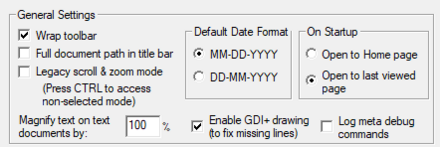
General Settings
- Wrap toolbar: When the window is not big enough to display the whole toolbar, this setting allows you choose if the toolbar should be wrapped or the end will cut off in the display
- Full document path in title bar: Shows the full path to the project (.dbdoc) file in the title bar.
- Legacy scroll & zoom mode: New in 11.3. Select to enable rubber-band zoom. Unselect for drag-pan and scroll-zoom.
- Magnify text on text documents by: Changes the text magnification for easier viewing. Values from 75 to 200 percent are reasonable factors.
- Enable GDI+ drawing: Occasionally lines on graphics fail to display when Hyperview is run in a remote desktop environment. Checking this option usually causes the missing lines to show up.
- Default Date Format
- Selects the default day/month order for displaying dates.
- On Startup
- Open to Home page: Opens Hyperview to the selected Home Page
- Open to last viewed page: Saves the last document viewed before Hyperview is closed so that when it is reopened, the same document will be displayed. This is the default setting.
Hotspot Enabling

- Enable function block hotspots: If this option is checked, clicking on a function block hotspot causes the Function Block Index to be displayed in the index pane.
- Enable function code hotspots: If this option is checked, clicking on a function code hotspot causes the project Function Code Index to be displayed in the index pane. This index shows all the places in the project where that particular function code is in use.
Live Data Appearance, Fonts and Communications, Annotations, and Search Settings
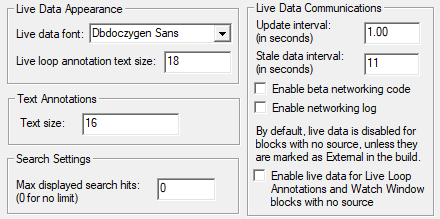
Live Data Appearance
- Live data font: Select the font to be used for live data (live loop annotations and live data on documents).
- Live loop annotation text size: Will change the size of the text in the live loop annotations, and for live data on documents where the font size is not explicitly specified in the build.
- Minimize All System Live Loop Annotations: Checking this option will minimize system live loop annotations across all documents.
Live Data Communications
- Update interval (in seconds): Specify the interval at which Hyperview will request data from the CIU. You can enter in fractions of seconds, setting the interval down to as low as 0.1 seconds.
- Stale data interval (in seconds): Number of seconds after which data displayed on a document or in a live loop annotation will be considered "stale". Generally stale data will be "grayed out" compared to non-stale data. The stale data interval must be larger than the update interval.
- Enable beta networking code: DBDOC 10.4 contains a reimplementation of some of the network communications between Hyperview and CIUMon (the "beta networking code"). The new code improves responsiveness and provides enhanced connectivity information, but is not compatible with Windows 2000. It has also encountered difficulties in certain situations in the field, and testing and development is ongoing. If you enable this option, and your live data appears to work normally, then use it. You will get the benefit of faster and more detailed network connectivity information. If you enable this option, and live data stops working, then disable it. Hyperview will still function normally.
- Enable networking log: Debugging feature.
- Enable live data for Live Loop Annotations and Watch Window blocks with no source: Attempt to fetch on-document live data for unknown blocks. By default, Hyperview will not attempt to fetch on-document data for blocks which have no source in the configuration and which have not been specifically marked as available in BuildPlus. This prevents problems in most systems, but may cause problems if the sources for some blocks actually exist but are not included in your project file (for example, because a large system has been split into multiple projects). Earlier versions of Hyperview always attempted to fetch on-document data for unknown blocks.
 Note: Module 0 Blocks 1-25 are node performance statistics, and will always be fetched, even if they have no source and the checkbox is not checked.
Text Annotations
- Text size: Set the font size for text annotations.
- Minimize All System Annotations: Checking this option will minimize system text annotations across all documents.
External Files
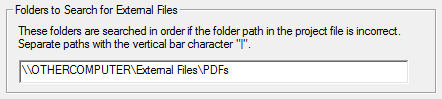
- Folders to Search for External Files Specify additional folders to search for external PDF and TIF files (the locations specified in the project file will be searched first). Separate paths with a vertical bar |. For more information see Viewing external files.
Restoring Supressed Dialogs

- Reset to show all suppressed dialogs: Checking this option will ensure that all dialog that have had Don't show this again indicated will be reset, and will reappear when they are next triggered.
Note: Support for resetting and restoring general preferences has been removed as of DBDOC 10.4.
See also